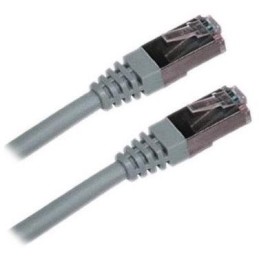
XtendLan S/FTP Cat 6A 15 m gray; Patch cable of category Cat 6A with two RJ-45 connectors, for connecting network devices. The cable length is 15 m. BASIC SPECIFICATIONS; Category: Cat 6A...
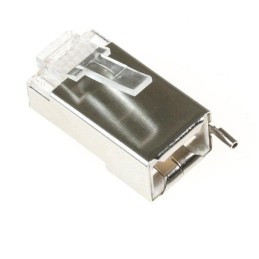
Ubiquiti TC-CON; Shielded RJ-45 8p8c connector. For wire, round cable. Without insert. The highest supported protocol is 1000BASE-T. The contacts are covered with 50 µm gold. BASIC SPECIFICATIONS;...
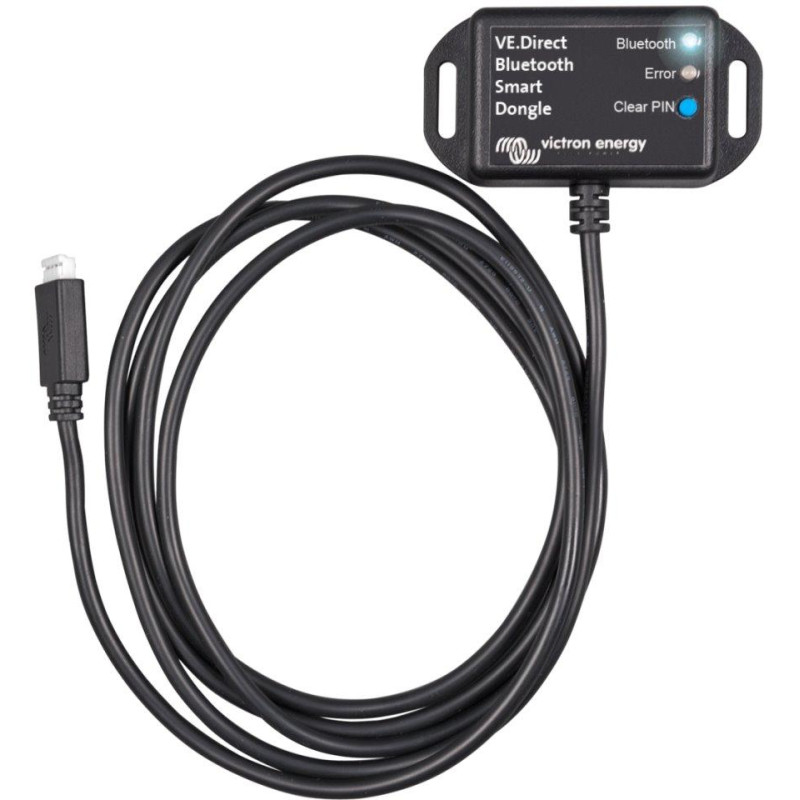
Victron VE.Direct Bluetooth dongle; VE.Direct to Bluetooth interface for monitoring Victron Energy devices on your mobile, tablet or other compatible device. With the VE.Direct to Bluetooth dongle you can...
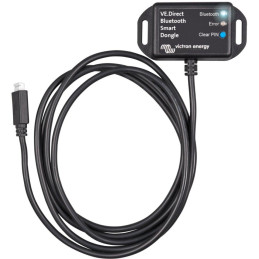
Victron VE.Direct Bluetooth converter VE.Direct to Bluetooth interface for monitoring Victron Energy devices on your mobile phone, tablet or other compatible device. With the VE.Direct to Bluetooth dongle you can get current information about the device status, as well as historical values, and even configure Victron Energy products. The dongle works with the VictronConnect App, available for Android and iOS devices. BASIC SPECIFICATIONS Interface: VE.Direct, Bluetooth Compatibility: all Victron products that have a built-in VE.Direct port Color: black Useful links: VictronConnect - Manual (EN) VictronConnect - Configuration guide (CZ - Google Translate translation) Update/update firmware Installation notes: - Connect the dongle directly to the products. The dongle cannot be connected to the Color Control GX. - It is not possible to use the monitored product with the dongle and use the Color Control GX at the same time. - It is not possible to extend the VE.Direct cable. Supported phones and tablets: The device used must have Bluetooth 4.0 (BT LE). For a full list of devices, see the VictronConnect manual. Pairing procedure: The default PIN is 000000 (6x zeros). Once connected, you can change the PIN using the (i) button in the top right corner of the app. If you lose the dongle PIN, set it to 000000 by pressing and holding the button. LED status codes: The dongle has two LEDs, a Bluetooth status LED (blue) and an error LED (red). Both LEDs light up when powered on. I can’t see my product on the display screen: - Only one phone or tablet can be connected to the dongle at a time. Make sure no other device is connected to the dongle and try again. - The dongle does not support all Victron products. Check that the Victron product is listed in the section above. - The dongle is powered via the VE.Direct cable. Make sure the dongle is connected to a supported device and the LED flashes when connecting the cable or the power is on. I can’t connect to the dongle: - Make sure you are close enough to the dongle. In an open area, within a distance of about 20 meters, it should work. - Connection problems can be caused by incorrect Bluetooth pairing. Try pairing again by first removing the pairing from your phone: go to your phone's Settings, then select Bluetooth. Click the icon next to the "VE.Direct LE" device and select "Forget this device". Then open the VictronConnect app again and select search for products again. Put the dongle into pairing mode by pressing the button, select the Victron product on the app's screen, confirm pairing and you should now be connected to the dongle. Dongle firmware update: When connecting for the first time with a new version of VictronConnect, it may happen that the dongle firmware needs to be updated. Please note that this dongle firmware update can be a bit complicated: all steps need to be followed patiently and precisely. The update may need multiple steps: the process may need to be repeated until the dongle item disappears from the list and the product is connected to the dongle. If the update process is interrupted, simply close the app and reopen it. This should resume the update process to the last completed step. Android Follow the instructions in the PDF manual (Update/Firmware update). iOS 1. The dongle must be paired before starting the update. 2. After the first step of the update is complete, go to the iPhone/iPad Bluetooth settings and remove the dongle from the list of paired accessories. Then return to the VictronConnect app and continue with the second step.
Are you sure that you want to report this comment?
Report sent
Your report has been submitted and will be considered by a moderator.
Your report cannot be sent
Write your review
Review sent
Your comment has been added!
Your review cannot be sent
Price history
Our pricing is always guided by the principles of a fair price. We do not artificially move prices or brag about inflated percentages. You can always find price history for each product.
Victron Phoenix VE.Direct 250 VA 48 V; Sine wave fully programmable inverter 48 V (250 VA) with ECO mode and VE.Direct interface. The inverter contains a robust toroidal transformer that proves its...
Victron Phoenix VE.Direct 500 VA 48 V; Sine wave fully programmable inverter 48 V (500 VA) with ECO mode and VE.Direct interface. The inverter contains a robust toroidal transformer that proves its...
Victron Phoenix VE.Direct 1200 VA 48 V; Sine wave fully programmable inverter 48 V (1200 VA) with ECO mode and VE.Direct interface. The inverter contains a robust toroidal transformer, which proves to be...
Victron Phoenix VE.Direct 1200 VA 12 V; Sine wave fully programmable inverter 12 V (1200 VA) with ECO mode and VE.Direct interface. The inverter contains a robust toroidal transformer, which proves to be...
Victron Phoenix VE.Direct 800 VA 12 V; Sine wave fully programmable inverter 12 V (800 VA) with ECO mode and VE.Direct interface. The inverter contains a robust toroidal transformer that proves its...
Victron MultiPlus 12 V/1200 VA; Multiplus is a powerful DC-AC hybrid inverter/charger with pure sine wave output, integrated adaptive battery charger and ultra-fast power source transfer switch...
Victron MultiPlus 12 V/1600 VA; Multiplus is a powerful DC-AC hybrid inverter/charger with pure sine wave output, integrated adaptive battery charger and ultra-fast power source transfer switch...
Victron Phoenix VE.Direct 1200 VA 24 V; Sine wave fully programmable inverter 24 V (1200 VA) with ECO mode and VE.Direct interface. The inverter contains a robust toroidal transformer, which proves to be...
Victron Phoenix VE.Direct 500 VA 12 V; Sine wave fully programmable inverter 12 V (500 VA) with ECO mode and VE.Direct interface. The inverter contains a robust toroidal transformer that proves its...
Victron Phoenix VE.Direct 375 VA 12 V; Sine wave fully programmable inverter 12 V (375 VA) with ECO mode and VE.Direct interface. The inverter contains a robust toroidal transformer that proves its...
Victron Phoenix VE.Direct 500 VA 24 V; Sine wave fully programmable inverter 24 V (500 VA) with ECO mode and VE.Direct interface. The inverter contains a robust toroidal transformer that proves its...
Victron Phoenix VE.Direct 375 VA 24 V; Sine wave fully programmable inverter 24 V (375 VA) with ECO mode and VE.Direct interface. The inverter contains a robust toroidal transformer that proves its...
Victron Sun Inverter 12/250-15; The solar inverter combines a sine wave inverter and a PWM solar charger in one device, is easy to install and requires minimal wiring. It will allow you to power your home appliances without requiring...
Not in stock. We will check availability with the supplier. Send us an inquiry, and we will confirm whether we can source the product.
In stock:0
Victron VE.Direct Bluetooth dongle; VE.Direct to Bluetooth interface for monitoring Victron Energy devices on your mobile, tablet or other compatible device. With the VE.Direct to Bluetooth dongle you can...